Website Accessibility (ADA): What You Need to Know (And Why It Matters)
DISCLAIMER: This information is not legal advice and is for educational purposes only. Laws around web accessibility vary greatly depending on the country, state, and/or regional jurisdiction you fall under. I am not a web accessibility expert. Please consult with a web accessibility expert for full compliance tips and resources.
If you've heard the term "ADA compliance" or "website accessibility" and wondered what it means for your business website, you're not alone. While there is no such thing as 100% accessibility and no universal governing metric applies, there are ways to assess and improve your site so that it can be generally accessible to a broad audience. Let me break it down in simple terms and share some practical steps you can take right now.
What Is Website Accessibility?
Website accessibility means making sure your website can be used by everyone—including people with disabilities. This includes people who:
Are blind or have low vision (and use screen readers)
Are deaf or hard of hearing
Have mobility limitations (and use keyboard navigation instead of a mouse)
Have cognitive disabilities
Use assistive technologies to browse the web
Think of it like having a ramp alongside stairs—you're making sure everyone can access your business, regardless of their abilities.
Why Does It Matter?
1. It's the Right Thing to Do
About 1 in 4 adults in the U.S. has some type of disability. When your website is accessible, you're welcoming more potential customers and showing you care about all people.
2. It's Good for Business
An accessible website means:
More people can use your site (bigger potential customer base!)
Better user experience for EVERYONE (not just people with disabilities)
Improved SEO (search engines love accessible websites)
Positive brand reputation
3. Legal Considerations
The Americans with Disabilities Act (ADA) applies to websites, even though it was written before the internet existed. Laws around web accessibility vary greatly depending on the country, state, and/or regional jurisdiction you fall under. While the laws are still evolving, year after year, in most recent years, small businesses have, unfotunately, faced lawsuits over not being “ADA compliant.” Although I am not an a web accessibility expert nor an expert in law, I want to make sure you are aware of steps you can take to be more compliant and resources to further your sites accessibility year after year.
Is Your Website Accessible? Quick Check
Here are some common accessibility issues:
❌ Images without alt text - Screen readers can't describe images without alternative text
❌ Poor color contrast - Light color text on white backgrounds is hard to read
❌ Videos without captions - Deaf users can't access video content
❌ No keyboard navigation - Some users can't use a mouse
❌ Unclear link text - "Click here" doesn't tell users where they're going
❌ Forms without labels - Users don't know what information to enter
Simple Steps to Improve Your Website Accessibility
1. Add Alt Text to All Images
What it is: A brief description of what's in the image
How to do it in Squarespace:
Click on any image
Click on the pencil icon to edit settings
Scroll down for the "Alternative Text" or "Alt Text" field
Write a clear, concise description
Examples:
❌ Bad: "IMG_1234"
✅ Good: "Woman in blue dress laughing at outdoor wedding reception"
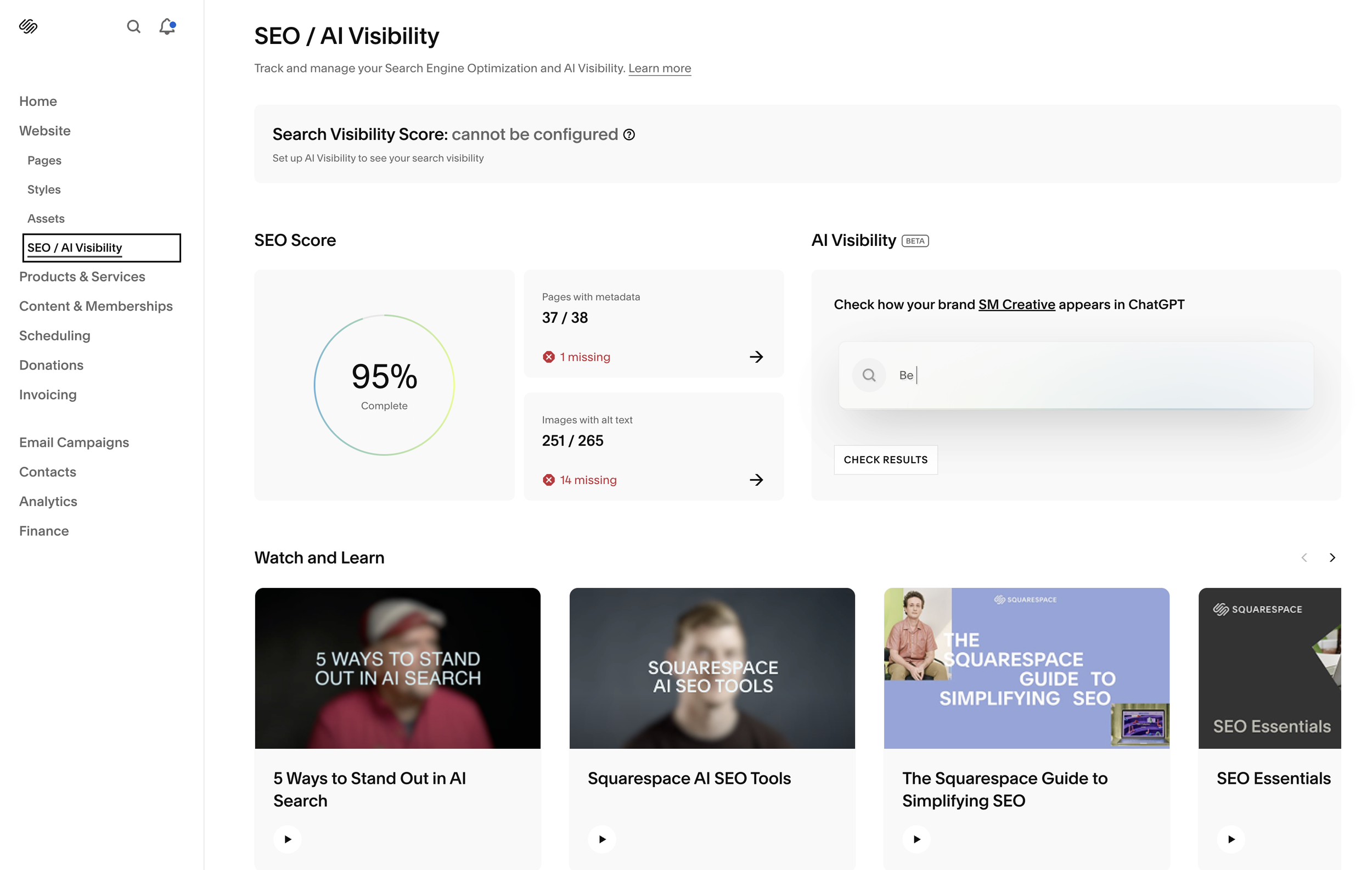
Pro tip: Use Squarespace’s AI SEO feature to create these automatically and all in one location.
2. Use Proper Heading Structure
What it means: Use headings (H1, H2, H3) in order, not just for styling
Why it matters: Not only is this important for SEO but also for screen readers use headings to navigate the page. Think of your headings like an outline.
How to do it:
Every page should have ONE H1 (your main title)
Subheadings should be H2
Sub-subheadings should be H3
Don't skip levels (don't go from H1 to H3)
In Squarespace: If you need a text to be larger than it’s native size, use the text stretch tool to expand the text without changing the heading.
3. Ensure Sufficient Color Contrast
What it means: Text needs to stand out from the background
Minimum ratio: 4.5:1 for normal text, 3:1 for large text
Check your colors: Use a free tool like WebAIM's Contrast Checker (webaim.org/resources/contrastchecker/)
Common fixes:
Dark text on a light background and light text on a dark background.
Middle shades next to each other make it hard to read like light gray or light yellow on white.
4. Write Descriptive Link Text
What it means: Links should make sense out of context
Examples:
❌ Bad: "Click here to learn more"
✅ Good: "Learn more about our wedding packages"
❌ Bad: "Read more"
✅ Good: "Read our complete planning guide"
Why it matters: Screen reader users often navigate by jumping from link to link. "Click here" repeated 20 times isn't helpful!
5. Add Captions to Videos
If you have videos on your site:
Add captions or subtitles
Include transcripts when possible
Make sure auto-play is disabled (sudden sound can be jarring)
6. Make Forms Clear and Easy
Every form field needs:
A clear label (not just placeholder text)
Error messages that explain what's wrong
Logical tab order for keyboard navigation
In Squarespace forms:
Use the built-in form blocks (they're already pretty accessible)
Make sure required fields are marked clearly
Test submitting with just your keyboard (no mouse)
7. Don't Rely on Color Alone
Example of a problem: "Items in red are out of stock"
Why it's an issue: Colorblind users can't distinguish the colors
Better solution: "Items marked with [SOLD OUT] are currently unavailable"
Use color PLUS text, icons, or patterns to convey information.
Adding an Accessibility Statement
I recommend adding an accessibility statement to your website footer. This shows:
Your commitment to accessibility
How people can report issues
Contact information for accessibility concerns
I've created one for you that you can customize and add to your site. [Link to accessibility statement page or include it below]
Quick Wins You Can Do Today
Here's what you can tackle this week:
30 minutes:
Add alt text to your homepage images
Check your color contrast on key pages
Review your main navigation for clear labels
1 hour:
Go through all your images and add alt text
Update "click here" links to be descriptive
Add an accessibility statement to your footer
2 hours:
Review your entire site for heading structure
Test keyboard navigation (unplug your mouse and navigate with Tab key)
Check all your forms for clear labels
Add captions to your videos
Resources for Learning More
WebAIM.org - Standards Checklist
WAVE Browser Extension - Free tool that evaluates accessibility right in your browser
Squarespace's Accessibility Guide - Platform-specific tips
Need Help?
As a web designer, I can help with the basics. Keep in mind I cannot guarantee 100% compliance to the law. Please consult with a web compliance certified expert who knows the law in your state for full spectrum help. Where I can start:
Check color contrast
Change Headings to be in logical order
Add alt text to all images
Add video/audio description
Add an accessibility statement to footer
The Bottom Line
Website accessibility isn't just about compliance—it's about making sure everyone can access your business, learn about your services, and become a customer.
The good news? Many accessibility improvements are simple to implement and make your website better for ALL users, not just those with disabilities.
You don't have to be perfect overnight. Start with the quick wins above, and gradually make improvements over time. Every step toward accessibility is a step in the right direction.